Dataconomy
  • News
    • Artificial Intelligence
    • Cybersecurity
    • DeFi & Blockchain
    • Finance
    • Gaming
    • Startups
    • Tech
  • Industry
  • Research
  • Resources
    • Articles
    • Guides
    • Case Studies
    • Whitepapers
    • AI Models Leaderboard
  • AI toolsNEW
  • Newsletter
  • + More
    • Glossary
    • Conversations
    • Events
    • About
      • Who we are
      • Contact
      • Imprint
      • Legal & Privacy
      • Partner With Us
Subscribe
No Result
View All Result
  • AI
  • Tech
  • Cybersecurity
  • Finance
  • DeFi & Blockchain
  • Startups
  • Gaming
Dataconomy
  • News
    • Artificial Intelligence
    • Cybersecurity
    • DeFi & Blockchain
    • Finance
    • Gaming
    • Startups
    • Tech
  • Industry
  • Research
  • Resources
    • Articles
    • Guides
    • Case Studies
    • Whitepapers
    • AI Models Leaderboard
  • AI toolsNEW
  • Newsletter
  • + More
    • Glossary
    • Conversations
    • Events
    • About
      • Who we are
      • Contact
      • Imprint
      • Legal & Privacy
      • Partner With Us
Subscribe
No Result
View All Result
Dataconomy
No Result
View All Result

Bring your ideas to life with Samsung’s Sketch to image feature

byEray Eliaçık
July 18, 2024
in Artificial Intelligence
Home News Artificial Intelligence
Share on FacebookShare on TwitterShare on LinkedInShare on WhatsAppShare on e-mail
Google Preferred Source

The Samsung Samsung Sketch to image Drawing assist feature, announced at Galaxy Unpacked, is a remarkable tool that uses AI to convert your sketches into visually appealing images in various artistic styles. This guide will walk you through the process of using this feature step by step. But first, you should know these:

  • Samsung account: Ensure you are signed into your Samsung Account to access this feature.
  • AI watermark: Images generated by AI will have an AI watermark in the bottom left corner.
  • Data processing: Your drawings are sent to a server for processing and not stored by Samsung.
  • Compatibility: Based on One UI 6.1.1, this feature is available on the Galaxy Z Flip6 and Z Fold6.
  • Activation: Enable the Drawing Assist feature in Settings.

How to use Samsung Sketch to image Drawing assist feature

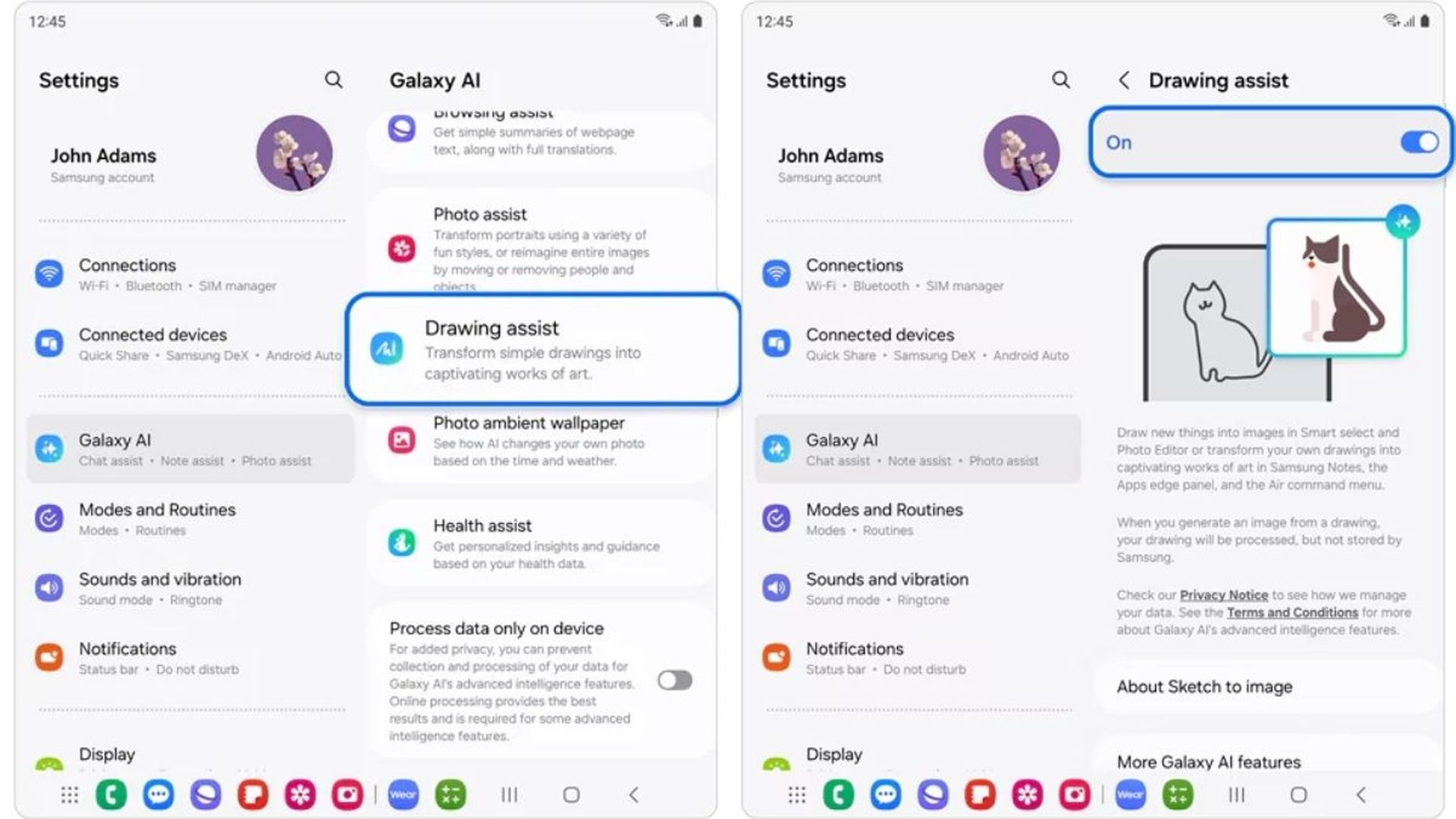
To use the Samsung Sketch to image feature, you should first enable Drawing assist:

  • Open Settings: Start by navigating to your device’s home screen and opening the Settings app.
  • Galaxy AI: Scroll down and tap on Galaxy AI.
  • Drawing Assist: Tap on Drawing assist and switch it to on.
How to use Samsung Sketch to image Drawing assist feature
To enable Drawing Assist, navigate to Settings > Galaxy AI > Drawing Assist and switch it on (Credit: Samsung)

Now, it’s time to access the Samsung Sketch to image AI feature:

Stay Ahead of the Curve!

Don't miss out on the latest insights, trends, and analysis in the world of data, technology, and startups. Subscribe to our newsletter and get exclusive content delivered straight to your inbox.

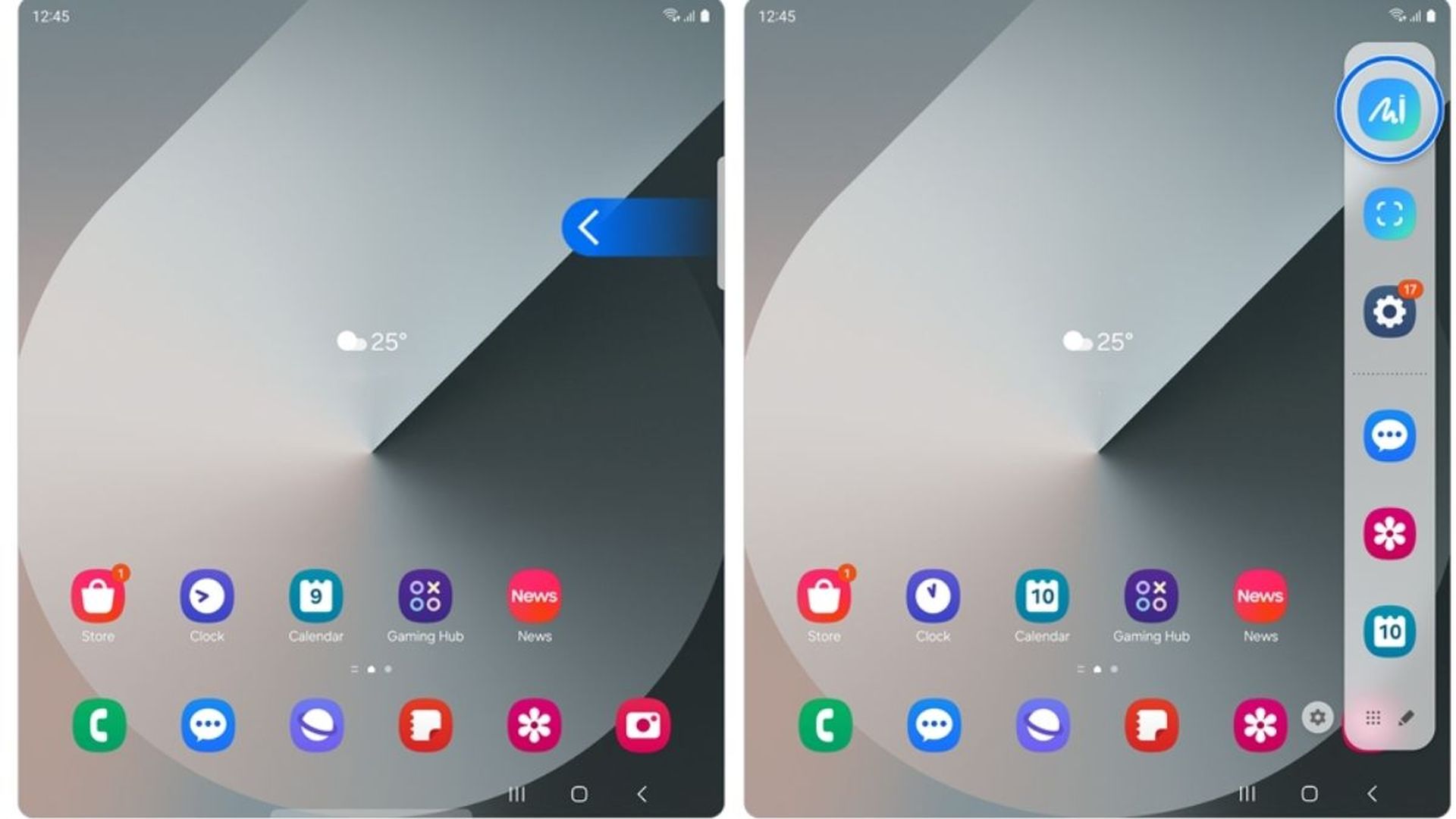
  • Swipe left: Swipe left from the top-right side of the screen to open the Edge panels. If the Edge panels are not active, go to Settings > Display > Edge Panels and enable them.
  • Icon selection: In the Edge panels menu, locate and tap on the Sketch to Image icon.
How to use Samsung Sketch to image Drawing assist feature
Samsung Sketch to image Drawing assist feature is available on the Galaxy Z Flip6 and Z Fold6 and requires you to be signed into your Samsung Account to use it (Credit: Samsung)
  • Alternative access: You can also access Sketch to image from the S Pen’s Air command menu by selecting the appropriate option.

Let’s bring some sketches to life:

  • Drawing: Use your finger or S Pen to draw your desired sketch on the canvas. For example, you can draw a rabbit or any other subject of your choice.
  • Adjust background transparency: You can adjust the transparency of the background screen to help align your drawing with any object or reference image.
  • Style options: After completing your sketch, you can choose from various drawing styles such as Watercolor, Illustrations, Sketch, Pop Art, and 3D Cartoon.
  • Generate image: Tap Generate to convert your sketch into an image using the selected style.
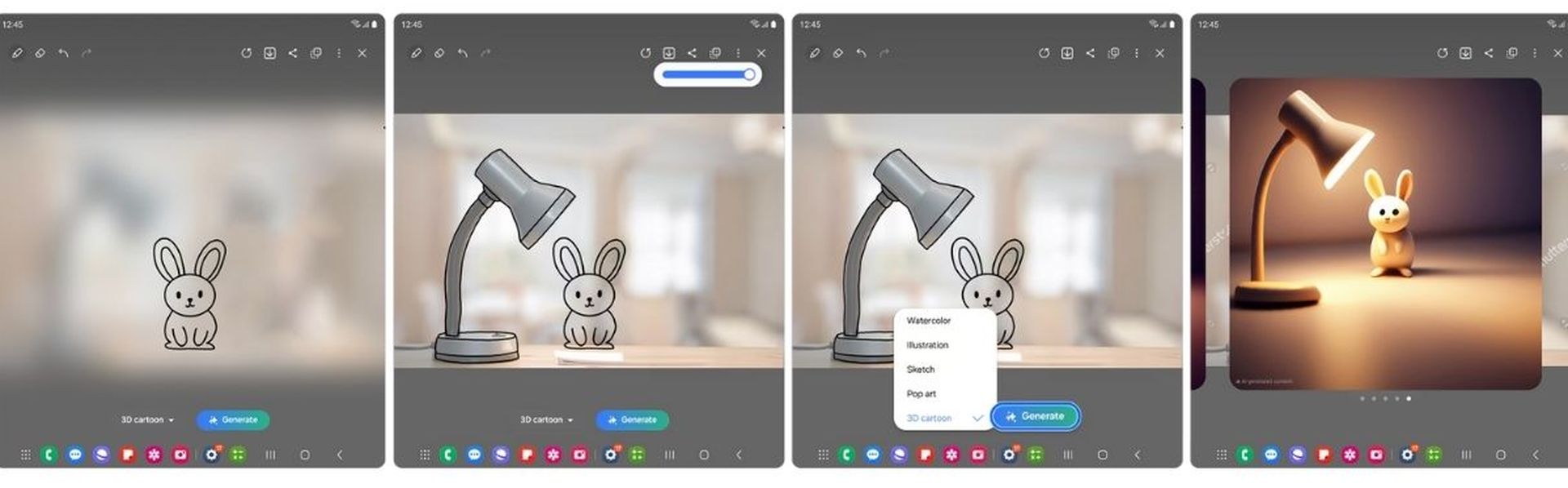
How to use Samsung Sketch to image Drawing assist feature
The Samsung Sketch to Image Drawing Assist feature uses AI to convert your sketches into stunning images with various artistic styles such as Watercolor, Illustrations, Sketch, Pop Art, and 3D Cartoon (Credit: Samsung)
  • Swipe to review: Swipe left or right to review different generated image options.
  • Save or copy: You can copy or save the generated image using the options available in the top menu.
  • Edit and re-generate: If you wish to make changes, swipe right to return to the drawing screen, edit your sketch, or select a different style and tap Generate again.

Unpacked 2024: New Galaxy AI features you should know


Using the Samsung Sketch to image Drawing assist feature is an innovative way to transform simple sketches into stunning artworks with ease. By following these detailed steps, you can explore various artistic styles and create impressive images right from your Samsung Galaxy device. Enjoy unleashing your creativity and enhancing your digital art with this powerful tool!


Featured image credit: Samsung

Tags: galaxy aiSamsungtrend

Related Posts

OpenAI upgrades ChatGPT memory with a new personalization system

OpenAI upgrades ChatGPT memory with a new personalization system

June 5, 2026
Amazon adds AI-generated product previews to search results

Amazon adds AI-generated product previews to search results

June 4, 2026
Meta launches AI business agents on WhatsApp, Instagram and Messenger

Meta launches AI business agents on WhatsApp, Instagram and Messenger

June 4, 2026
Google rolls out Ask Gemini in Drive to eligible Workspace users

Google rolls out Ask Gemini in Drive to eligible Workspace users

June 4, 2026
Does your AI clock in without you?

Does your AI clock in without you?

June 3, 2026
Anthropic invites 150 more organizations into Project Glasswing

Anthropic invites 150 more organizations into Project Glasswing

June 3, 2026

LATEST NEWS

Elden Ring: Tarnished Edition launches on Switch 2 in August

FIFA World Cup game arrives on Netflix on June 11

Meta tests hidden facial recognition code for smart glasses

OpenAI upgrades ChatGPT memory with a new personalization system

Meta rolls out Instagram Plus subscription worldwide

Steam Machine and Steam Frame are coming this summer

BEST AI MODELS LEADERBOARD

See the best AI models, ranked by intelligence, benchmark results, speed and token price. Find the most suitable LLMs, Text-to-Image, Image Editing, Text-to-Speech, Text-to-Video and Image-to-Video  artificial intelligence model for your tasks and business.

LATEST TOOLS

Roboto AI

Pickaxe

Pfpmaker

MindPal

Syllaby

ScreenApp

FinanceBrain

GitHub Spark

Hints

VisionStory AI

Dataconomy

COPYRIGHT © DATACONOMY MEDIA GMBH, ALL RIGHTS RESERVED.

  • About
  • Imprint
  • Contact
  • Legal & Privacy

Follow Us

  • News
    • Artificial Intelligence
    • Cybersecurity
    • DeFi & Blockchain
    • Finance
    • Gaming
    • Startups
    • Tech
  • Industry
  • Research
  • Resources
    • Articles
    • Guides
    • Case Studies
    • Whitepapers
    • AI Models Leaderboard
  • AI tools
  • Newsletter
  • + More
    • Glossary
    • Conversations
    • Events
    • About
      • Who we are
      • Contact
      • Imprint
      • Legal & Privacy
      • Partner With Us
No Result
View All Result
Subscribe

This website uses cookies to improve your experience. You can choose to accept or reject them. Visit our Privacy Policy.